Activation procedure explained below is applicable for the customers who had purchased the product from one of our associate sites.
Note: It is assumed that the user had already downloaded and installed the s/w product. If you have not yet downloaded/installed the software, please see instructions on how to download and install the software
There are two ways to activate the software
1.AUTOMATIC ACTIVATION : Recommended procedure for customers with Internet connectivity. The activation is instantaneous (assuming that the product had already been purchased)
2.MANUAL ACTIVATION : Procedure to be followed by customers who have only e-mail access to the Internet. The process may take up to 24 hours.
Both the procedures have been explained in the following sections.
1. AUTOMATIC ACTIVATION
Once you open the application, click the button "Request Activation Key Online" for automatic activation of full version of the software.
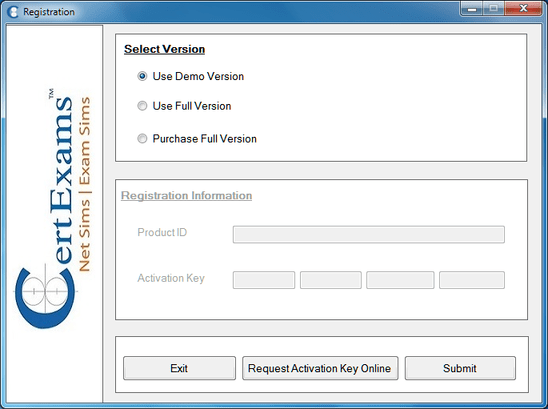
On clicking the button ,it leads to next window called Activation Key Request as shown
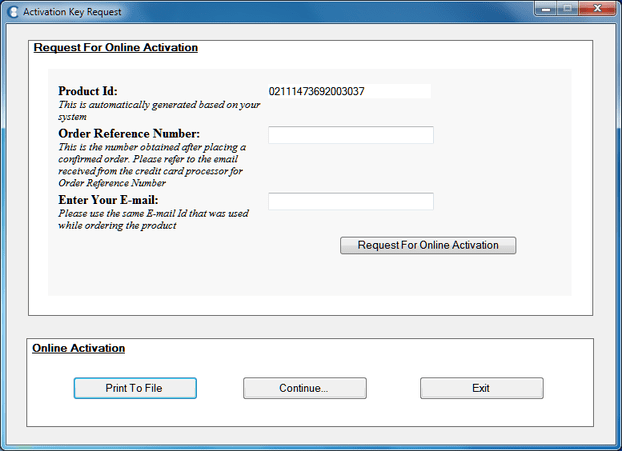
Please enter in this form the following fields:
Valid order reference number (emailed to you by the credit card processor, such as Paypal, Stripe, ShareIT, Plimus, etc. soon after successfully ordering a product), E-mail-id (as given in the order form while ordering the product)
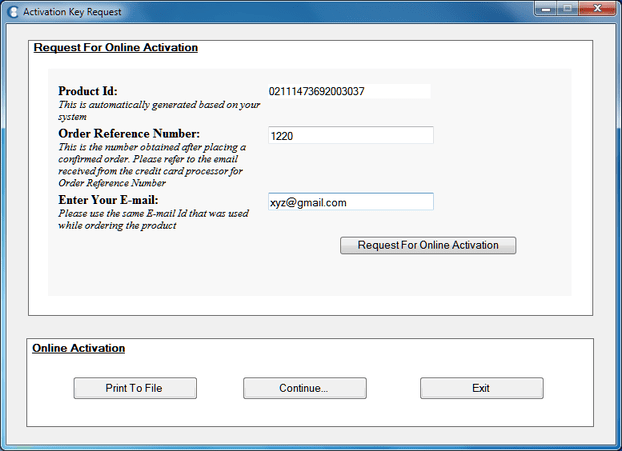
Click on the button " Request for Online Activation" so that the request goes to the server.
Upon successful verification, the product is activation instantly. Please note that the Internet Connectivity is required for online activation of the product. A message is displayed on the window that the processing was successful as shown below.
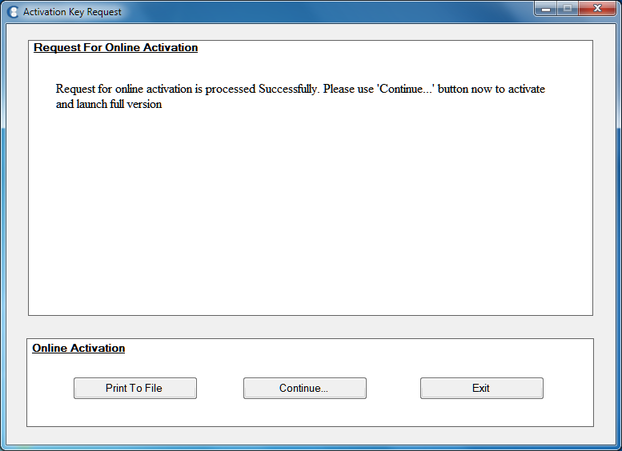
Now click the button "Continue.." the launches the full version of the software as shown below.
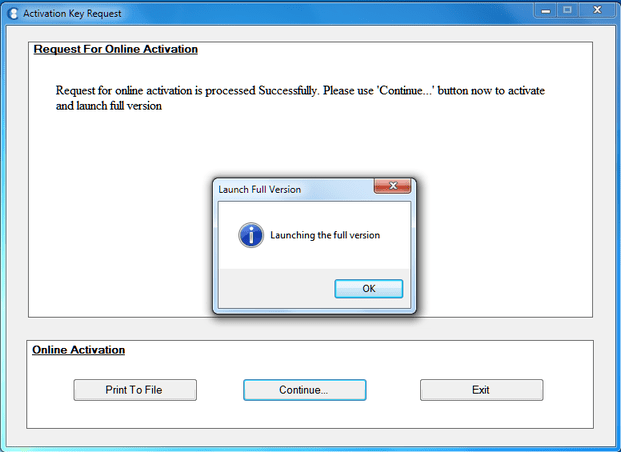
Note that the activation key will also be sent to user’s registered email-id. This will be useful if the user need to activate the product manually at a later time due to whatsoever reason.
2. MANUAL ACTIVATION
If there is no internet connection on the candidate system, then when "Request for Activation Key" button is clicked on the registration form , a message box is displayed as shown.
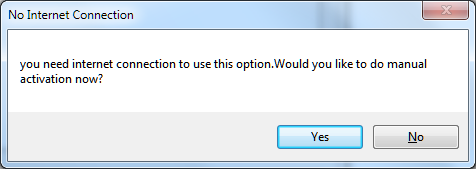
On clicking yes, "Manual Activation" window is displayed as shown
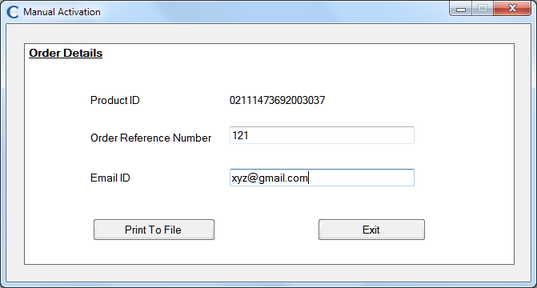
The user can fill up the fields in the "Print To File" form shown below, and use the button "Print to File" option and later send this information via email to email ID specified in the file and the product key will be sent to user's email ID within 48 hours and then the user can manually enter the key in the text boxes provided and activate the full version of the software in the "Registration Form" shown later.
On clicking "Print to File" button, the following message box is displayed as shown.
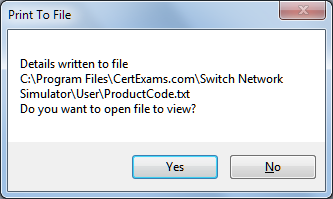
On clicking "Yes" the ProductCode.txt file is displayed as below (Note that the display is for a specific product. The ProductCode.txt will be in the /user folder of the respective product for which you need activation key).
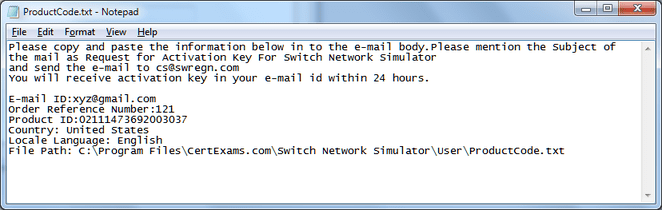
The activation key will then be sent to user's email-id and the user can enter the activation key into the textboxes as shown. On clicking "Next" a message box saying the activation key is valid is displayed as shown
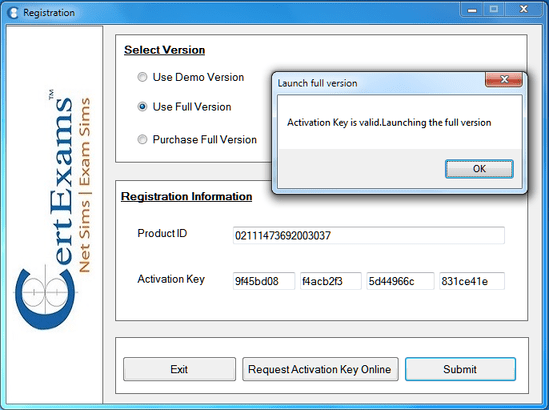
On clicking "Ok", the full version of the software is launched.